


Payment & Billing
Managing billing has never been easier. With Savoya’s upgraded Client Portal, you have full visibility into upcoming charges, trip payment details, and downloadable invoices, all from one intuitive dashboard. Whether you’re overseeing a single traveler or managing billing across an entire organization, Savoya’s tools are built to save you time and eliminate friction.
1. Billing & Payment Features
- Centralized Billing View – See all upcoming and past trips, organized by traveler, date, or payment method.
- Real-Time Payment Status – Instantly check whether a trip has been paid, is pending, or was charged to a saved payment method.
- Flexible Payment Options – Use saved credit cards, corporate billing accounts, or pre-approved profiles.
- One-Click Invoice Downloads – Download invoices individually or in batches for reporting or reconciliation.
- Filter & Search Capabilities – Quickly locate billing information by date range, traveler, trip ID, or destination city.
2. Payment Methods
- Credit Cards – Savoya accepts all major credit cards. A card is required to secure a reservation and charges are processed upon trip completion.
- Enterprise & Corporate Accounts – May be eligible for post-trip billing or invoicing terms. Contact our team for details.
- Travel Bank – When available, Travel Bank funds can be applied at checkout. A credit card is still required to secure the reservation and cover any potential overages.
3. Rates & Billing Details
- All-Inclusive, Transparent Pricing – Savoya’s rates include all costs and gratuities. Fees such as airport charges, tolls, or taxes may be added if incurred during the course of the trip. There is currently a fuel surcharge in place. Savoya does not tack on additional administrative fees or operating costs.
- Hourly Trips – Billed for actual usage, including driver positioning time (typically 30 minutes at start and end for same-city trips). Quoted Time and Estimated Charges are displayed in your reservation.
- Transfer (Flat) Rates – Available for direct, point-to-point trips (no stops) between common locations such as airports and city centers. Includes 30 minutes of complimentary wait time.
- Quoted Time – An estimate of total driver reservation time based on itinerary, stops, and positioning. Displayed in the “Rate & Billing” section.
- Additional Fees – Only applied when incurred (e.g., airport fees, tolls, parking). Passed along at cost and itemized on your final receipt.
- Driver Gratuity – Already included in all rates. Additional tips are never required but may be added for exceptional service.
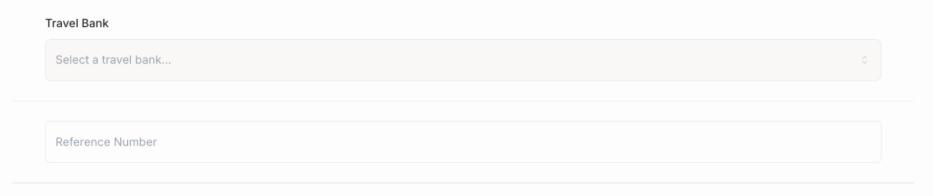
Tip: Enter an optional internal “Reference Number” for any special invoicing, cost center, PO, or internal trip reference. This information will be added to all confirmation and receipt notifications that are received.
4. How to View or Download Invoices
- Click your profile image in the top right and select “Invoices”
- Filter or search by any detail related to the invoice such as location, date, or invoice number
- Click into the invoice to view individual reservation details associated with the invoice
- Type in or update the email address that you’d like the invoice resent to and press “Re-send invoice”
5. Receipt Retrieval
- From the main reservation screen, select the “Completed” filter
- Locate and click on the trip you need a receipt for by using the search box and entering trip details such as passenger name or trip location
- Select “Send Receipt” to have the finalized trip receipt emailed directly to you
6. Updating Payment Methods
- Navigate to Account Settings in the top right corner
- Click Payment
- Add, edit, or remove credit cards and billing profiles at any time.





© 2026 Savoya. All rights reserved.